Summary
Pre-authorized payments (also known as pre-authorized debits) are payments that are set up to debit your account and credit a vendor (like a bill payee or gym membership).
Pre-authorized payments are set up directly with the bill vendor, and you can often do this through your online account with them.
What you'll need
- Your account information. You can get this easily by following the steps below to View your transit number, institution (bank) number and account number or Download a digital void cheque.
- If you’re doing this online, your login details for the bill vendor. For step-by-step instructions for popular payees, check out our Tips for popular payees section.
View your transit number, institution (bank) number and account number
How to do it
- Sign in to digital banking
- From the "Account Overview" screen, select the account you want this information for
- Select the Details tab
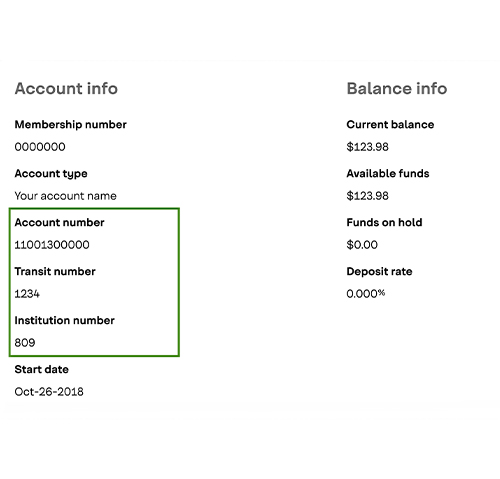
You can find these numbers in the order they're listed below:
Account Number
Your account number is 11 or 12 digits long excluding the three numbers in the brackets and located either next to or directly below your account name.
Transit Number
Your transit number is 5 digits long.
Institution Number
The Institution number is 809.
Download a digital void cheque
When setting up a pre-authorized debit (like a bill payment) or credit (like payroll), you may be asked to provide a void cheque. You can view and download a void cheque using digital banking.
How to do it
- Sign in to digital banking through a computer or our mobile app
- From the menu, select Account Overview, then Void Cheques
- Select the account you want the Void Cheque for and confirm your address is correct
- Select the Export Void Cheque button to download a PDF file containing your void cheque
- You can save or print this PDF to provide a digital or physical copy
Ready to go?
Sign in through this button to go directly to the Download Void Cheque page.
Tips for popular payees
Here are the step-by-step instructions for some of the most popular bill payees (as of July 2024):
How to do it
BC Hydro
- Sign in to your MyHydro account
- Select Billing & Payments from the menu
- Select Ways to pay your bill
- Select the Pre-authorized payments option, then select Set up auto-pay
- Fill in your account details and follow the rest of the steps
Fortis BC
- Sign in to your Fortis BC account
- From the Accounts Summary page, select Set up Pre-authorized Payment Plan
- Fill in your account details and follow the rest of the steps
Telus
- Sign in to your My TELUS account
- From your Overview, select View and Pay Bill
- Select Statements
- Select the Recurring Payments icon for the target account
- Under Payment Account, select Credit card or bank account
- Fill in your account details and follow the rest of the steps
Collabria
- Sign in to your Collabria account
- Select Make a Payment
- Select Manage Payment Accounts, then select Add Account
- Fill in your account details and select Add Account
- Select Autopay
- Choose the payment option. Select Schedule
- Select OK to activate Autopay
Tip: Autopay will take effect on the next statement cycle, so remember to still make your current payment manually.